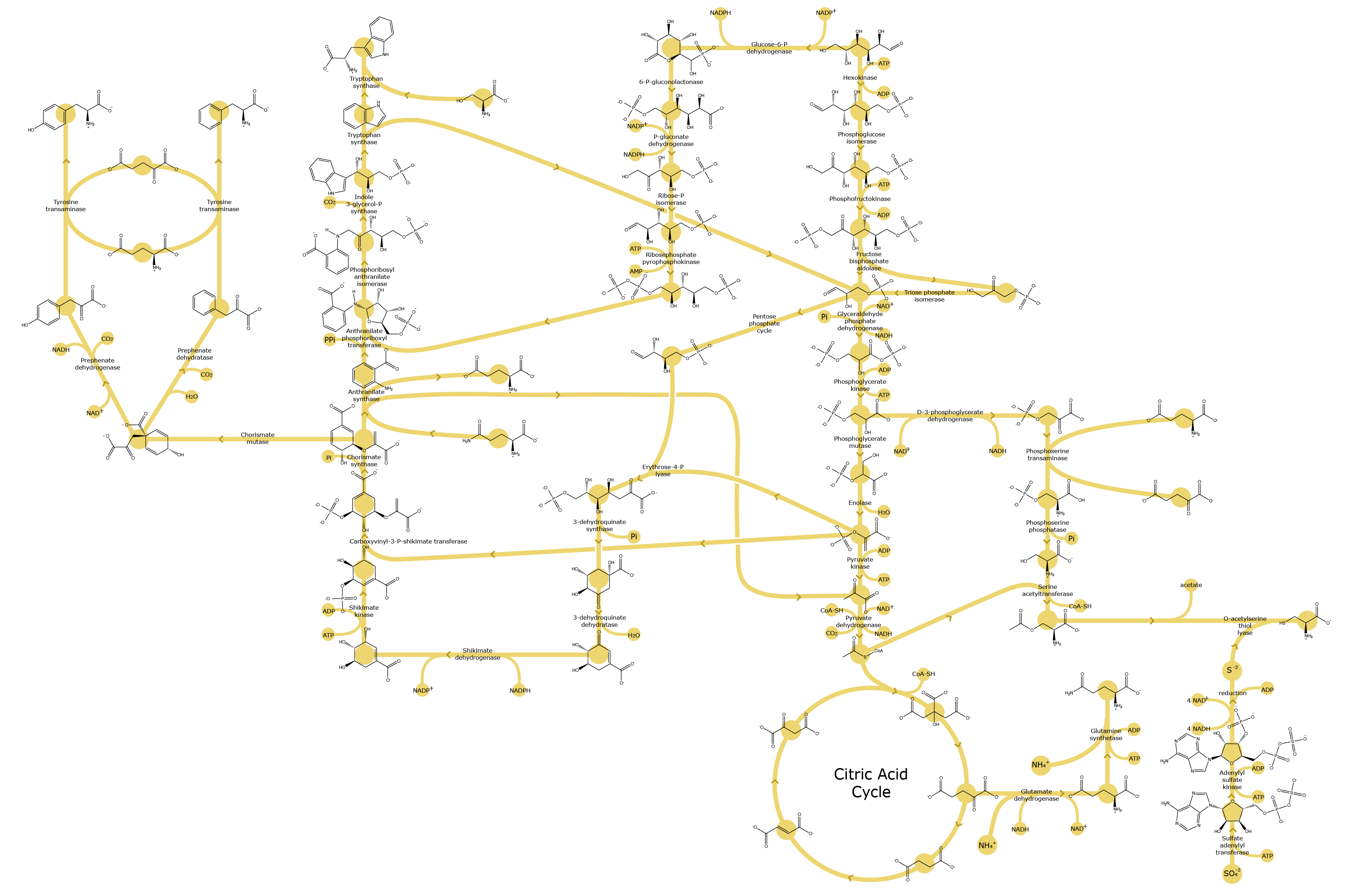
Use the Zooming Image Tool to enable learners to see details of large, complex images.
With the Zooming Image Tool, the learner can move the mouse pointer over a part of the image to enlarge it and see more detail.
To use the Zooming Image Tool, you must first add the jquery.loupeAndLightbox.js JavaScript file to your course.
You must also add both the regular and magnified image files to your course.
The following HTML code shows the format required to use the Zooming Image tool. For the example in this template, you must replace the values in italics.
        <div class="zooming-image-place" style="position: relative;">
          <a class="loupe" href="path to the magnified version of the image">
            <img alt="Text for screen readers"
              src="path to the image you want to display in the unit" />
          </a>
          <div class="script_placeholder"
            data-src="path to the jquery.loupeAndLightbox.js JavaScript file in your course"/>
        </div>
        <script type="text/javascript">// >![CDATA[
        JavascriptLoader.executeModuleScripts($('.zooming-image-place').eq(0), function() {
          $('.loupe').loupeAndLightbox({
            width: 350,
            height: 350,
            lightbox: false
          });
        });
        // ]]></script>
        <div id="ap_listener_added"></div>
You can modify the example below for your own use.
The example below shows a subset of the biochemical reactions that cells carry out.
You can view the chemical structures of the molecules by clicking on them. The magnified view also lists the enzymes involved in each step.
Press spacebar to open the magnifier.